How to Create a QR Code Free Online
Learn how to create and make a free QR code online for a URL or structured payload, customize it safely, download PNG or SVG and test the final code.
Quick steps
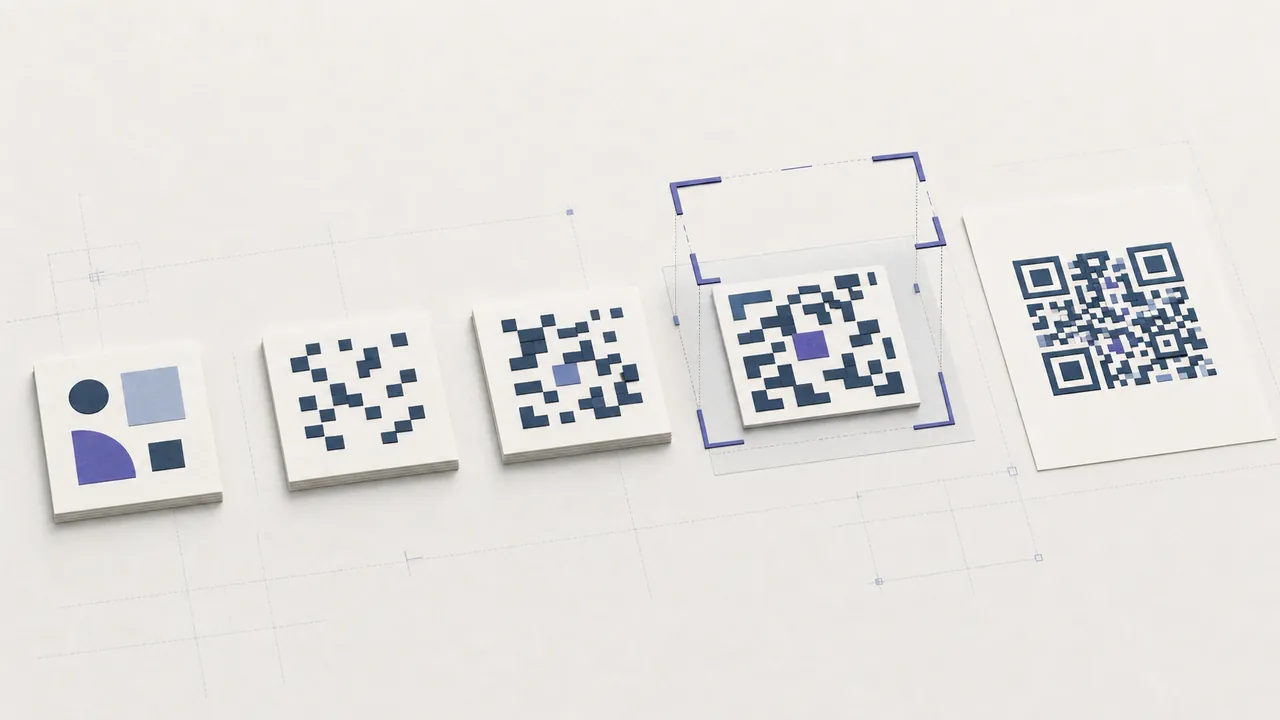
If you want to know how to create a QR code, begin with the action recipients should take. Choose URL, text, email, phone, SMS, vCard, WhatsApp, Wi-Fi, or a supported managed type; enter the exact content; scan the plain preview; customize conservatively; download PNG or SVG; and scan the exported asset at its final size.
Static codes can be generated free online without an account. Dynamic redirects, hosted documents, and bulk jobs require sign-in because the server must store and own records.
1. Choose the correct payload
Use URL for a public HTTPS web page, not for Wi-Fi credentials or contact fields. Use vCard when a phone should offer to save a contact. Use the Wi-Fi type for network name, security, and password. Use plain text only when the message itself should be available offline. Structured payloads reduce ambiguity across scanners.
Ask whether the content will change. A static URL code is independent and permanent as an image, but its encoded value cannot be edited. A dynamic code can change its destination after printing and provide scan events, but depends on a managed redirect and account.
2. Enter and validate real data
Paste the final HTTPS URL, not a local development address or admin-only preview. For phone data, include an appropriate country code. For Wi-Fi, match the SSID capitalization and authentication mode. For a contact, include only details approved for public sharing.
Short payloads create less dense matrices. Remove unnecessary tracking parameters and avoid putting secrets in URLs. Anyone who obtains the code can recover its content.
3. Generate a plain baseline
Before customization, scan the black-on-white preview. Confirm every character and complete the intended action without relying on your existing login session. For a website, test on mobile data. For a PDF or form, test from a private window so hidden permission requirements appear.
This baseline separates content problems from design problems. If the plain version fails, styling will not repair an invalid payload.
4. Customize without damaging function
Choose a dark foreground and light background. Preserve the quiet zone and all three finder patterns. A small centered logo can work with suitable error correction, but covered modules reduce the margin for dirt, blur, and low-resolution print. Gradients must remain dark across their entire range.
Avoid reverse polarity, busy photographs, pale colors, horizontal stretching, screenshots, and decorative edits to individual modules. Include a truthful call to action outside the quiet zone.
5. Download the right format
Download PNG for presentations, email, and ordinary web placement. Use SVG for professional print and layout because it scales without pixelation. Do not copy the preview or take a screenshot. Keep the source asset and a record of the encoded value.
When a design application imports SVG, confirm it does not crop the blank margin or change proportions. When using PNG, provide enough pixels for the final physical size and prevent automatic compression.
6. Test the final output
Scan the downloaded file, then print one production proof. Test target Android and iOS devices, normal viewing distance, bright and dim lighting, and the intended material. For posters, stand at the real distance. For packaging, test after coating, folding, or application to a curved surface.
If a code is slow, enlarge it, restore solid contrast, clear its quiet zone, remove the logo, and shorten the data. Change one factor at a time.
Common creation mistakes
The most common errors are encoding the wrong destination, publishing an account-restricted document, using an editable preview URL, printing too small, removing whitespace, covering finder patterns, and assuming a successful on-screen scan certifies a whole print run. Another is treating a QR as a security layer: encoding is not encryption.
Static codes and expiry
A static pattern has no date field that makes it expire. It stops working when the image is damaged, the scanner cannot decode it, or its destination disappears. A dynamic code adds service conditions. Maintain URLs, domains, redirects, and account ownership for as long as printed materials remain in circulation.
Start with the main QR code generator, use the custom QR code generator when branding is necessary, and consult the print guide before a large run.
How to generate QR code assets for a team
Define who owns the payload and who approves artwork. Store the final URL or structured data beside the download, name the asset by campaign and revision, and keep the plain baseline. A teammate should scan and compare the result before a printer or publisher receives it.
For repeated campaigns, approve templates with fixed quiet zone, contrast, logo maximum, minimum size, and call-to-action placement. Test the densest expected content. This avoids rediscovering the same design limits every time someone asks how to create a QR code.
How to create a free QR code online safely
Use a static type, avoid sensitive values, validate the destination in a signed-out browser, and download the actual file. A free static result should not secretly depend on an account or redirect. If the workflow genuinely needs stored files, editing, bulk output, or analytics, use the clearly labeled signed-in feature and document its service dependency.
After publication, schedule destination and physical checks. Generation is complete only when the exported and final deployed code both work. Long-lived signs also need domain renewals, accessible alternatives, and an owner who can remove unsafe or outdated material.