How to Scan a QR Code on Android
Scan and read QR codes on Android with the camera, Quick Settings, Google Lens, a saved screenshot or an online QR code reader, with troubleshooting steps.
Fastest Android method
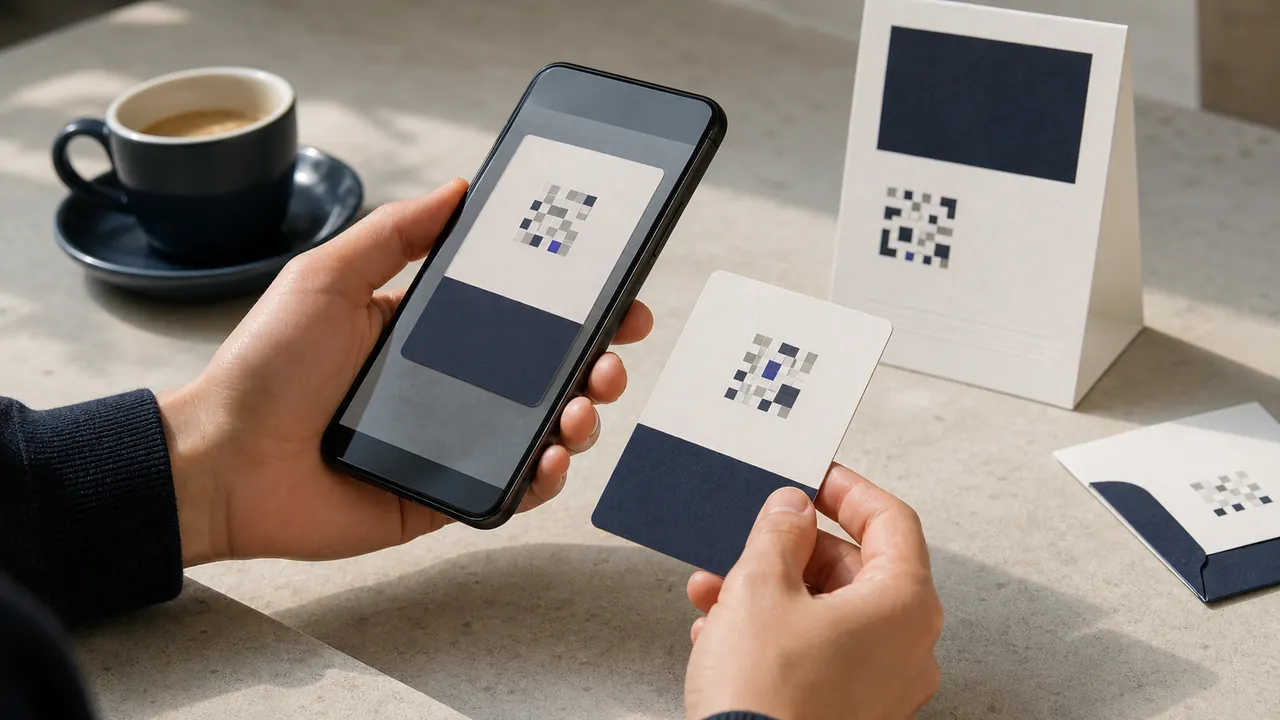
To understand how to scan QR code on Android, start with the default camera in photo mode. Point at the complete pattern, wait for a link or action banner, review it, and tap. Google notes that camera scanning support varies by device model, so a missing banner does not necessarily mean the code is invalid.
If the default camera does not respond, use a QR scanner tile in Quick Settings, Google Lens where available, or a browser scanner that accepts an image.
Use the Android camera
- Open Camera and select ordinary Photo mode.
- Make sure the full square and surrounding blank margin are visible.
- Hold still while autofocus makes modules sharp.
- Wait for a banner rather than taking a photograph.
- Inspect the domain or action before tapping.
Some devices have a setting such as “Scan QR codes” or “Google Lens suggestions” that must be enabled. Manufacturer camera apps differ, and work-managed phones may disable recognition.
Use Quick Settings
Swipe down from the top and look for “Scan QR code.” You may need to edit tiles to add it. This route is useful when the camera app lacks recognition. The interface and availability depend on Android version and manufacturer.
Treat the result like any other untrusted link. A system scanner can decode a malicious URL as successfully as a legitimate one.
Scan a QR code saved on an Android phone
Open the screenshot or photo in Google Photos or the manufacturer gallery and choose Lens or a detected-link action. If no recognition control appears, use the online QR scanner: choose the saved image, let the browser decode it locally, and review the text result.
Crop unrelated content but keep a clean boundary around the matrix. Use the original file, not a compressed thumbnail. If several codes appear, crop to one.
Scan from Chrome or a laptop
An Android browser can grant camera access to a scanner page or upload an image. The QRBarcode tool does not upload frames for decoding. On a laptop, use webcam scanning for a physical code or screenshot upload for a code already on screen.
Camera access can fail if site permission is denied, Android privacy controls block it, another app owns the camera, or the page is not secure. Retry after changing permissions or use image upload.
Troubleshoot recognition
Increase light without glare, clean the lens, hold the camera square, and vary distance slowly. For a code on a display, raise brightness and avoid moiré by changing distance or angle. For a tiny printed code, use the main rear camera rather than a lower-resolution front camera.
If you own the design, restore strong contrast, quiet space, and conventional finder patterns. Remove an oversized logo and enlarge dense content. Test the downloaded original to determine whether printing introduced the fault.
Stay safe after decoding
Android normally presents an action rather than opening immediately. Read the full domain and verify that it matches the sign, merchant, sender, or product. Avoid installing unknown APK files, entering credentials after an unexpected scan, or approving a payment to a different recipient. Physical codes can be replaced with stickers.
For Wi-Fi, check the network name before joining. For contacts, review fields before saving. For payment and messaging links, confirm the recipient. Successful decoding is not an endorsement.
Device differences are normal
Android covers many camera apps, OS releases, and hardware combinations. Instructions and labels therefore vary. The reliable sequence is camera first, system scan or Lens second, saved-image browser reader third. This gives a recovery path without requiring a random scanner app or uploading a private screenshot to an unknown server.
Android QR scanner privacy checklist
Prefer the system camera, Quick Settings, Lens, or a browser tool with a stated local-processing boundary. Review app permissions before installing a separate Android QR scanner. A reader normally needs camera access; contacts, location, call logs, and broad storage access require a clear reason.
After using a browser camera, close the stream and revoke permission if access was temporary. For a saved screenshot containing personal information, crop to the code and avoid uploading it to an unknown service. Local decoding reduces disclosure but the decoded result itself can still be sensitive.
Test across Android devices
Teams publishing codes should test a recent Pixel or similar reference device, at least one major manufacturer camera, and an older supported device. Record whether each path uses the camera, Quick Settings, Google Lens, or browser upload. This practical matrix is more useful than claiming one Android instruction is universal.
When teaching how to scan QR code on Android, include safe-link review and a fallback short URL. A code on public signage should not require users to weaken security settings, install an unfamiliar app, or grant unrelated permissions.