
How to Scan a QR Code on a Phone, Screenshot, or Laptop
Learn how to scan, read and decode a QR code with a phone camera, from an image or screenshot, or on a laptop, plus safety and troubleshooting steps.

Quick answer
To learn how to scan a QR code on a modern phone, open the camera, point it at the complete square in ordinary photo mode, wait for a banner, review the destination, and tap only if it is expected. If the code is already saved on the phone, use a photo app's recognition feature or upload the screenshot to a browser-based QR code reader.
Scanning reads the encoded payload. Opening a website, joining Wi-Fi, saving a contact, or launching an app is a separate action that should require confirmation.
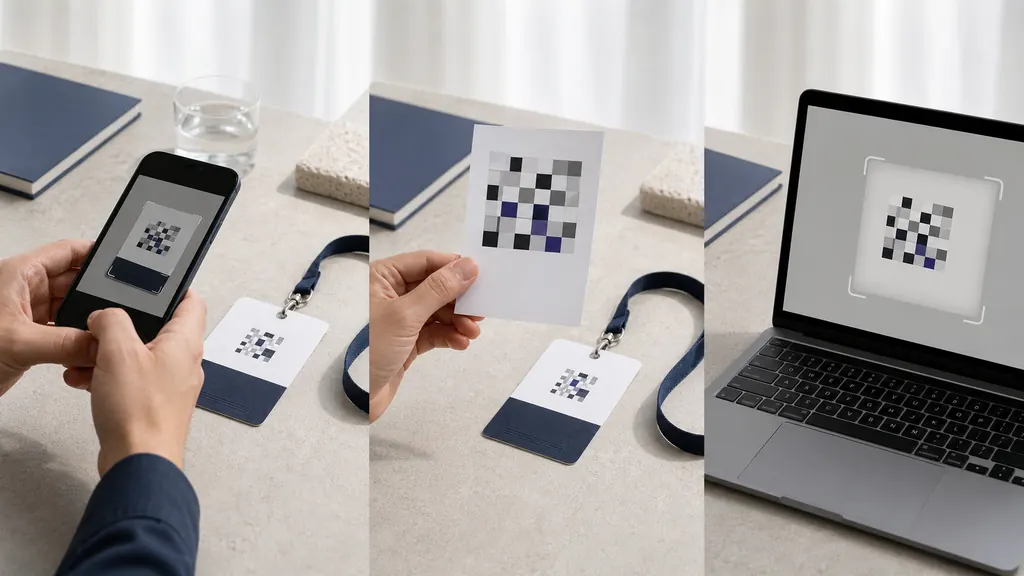
Scan with a phone camera
- Clean the camera lens and open the default camera.
- Use normal photo mode unless the device provides a QR mode.
- Fit all four sides of the symbol in the frame.
- Hold steady while autofocus resolves individual modules.
- Tap the banner only after checking its domain or action.
Do not fill the frame so tightly that the quiet zone disappears. If the symbol is on another screen, raise that screen's brightness and tilt slightly to remove reflections. If it is printed, add light without creating glare.
Scan a QR code from a screenshot
When the code is displayed on the same phone, take a screenshot and open it in the system photo app. Look for a Lens, scan, or detected-link action. Device support varies. As a consistent alternative, open QRBarcode's QR code scanner online, choose the image, and review the locally decoded result.
Crop a busy screenshot to one code while retaining a clear margin. Use the original image instead of a messaging thumbnail. Multi-code screenshots are ambiguous, so isolate the intended symbol.
Scan on a laptop
A laptop can upload an image or use its webcam in the online scanner. Grant camera access only to the site you intend, present the symbol squarely, and revoke permission afterward if it was a one-time task. For a code shown on the same laptop screen, use a screenshot upload rather than trying to aim the webcam at its own display.
Browser decoding keeps selected images and frames local on the QRBarcode scanner page. Opening a decoded URL then contacts the external destination normally.
Review results safely
Do not let a scanner navigate automatically. Check HTTPS, the exact domain spelling, and whether the action matches the physical context. Sticker replacement is possible on parking meters, table cards, payment signs, parcel notices, and posters. Be suspicious of urgent sign-in requests, unexpected downloads, shortened domains, and payment pages with the wrong recipient.
Text, phone, Wi-Fi, or contact payloads can also be sensitive. Review fields before saving or joining. A recognized pattern proves only that data was decoded, not that it is trustworthy.
Why a QR code will not scan
Common causes include blur, weak contrast, missing quiet zone, tiny modules, damaged finder patterns, large logos, glare, curvature, low screen brightness, and severe perspective. Move back if the camera cannot focus; move closer if the code occupies too few pixels. Hold the device more squarely and try better light.
If you control the artwork, restore black on white, remove decoration, enlarge it, and shorten the payload. For a printed code, test the source download to distinguish design trouble from printer or material damage.
Camera permission problems
Browsers usually require HTTPS for camera access. A denied prompt, operating-system privacy setting, missing device, or another application using the camera can block the stream. Change the site's permission, close competing apps, reload, or use image upload. A good scanner shows a recoverable state instead of trapping the user.
After a successful scan
For important workflows, verify the actual outcome. A URL should reach the correct mobile page; a Wi-Fi payload should join the intended guest network; a vCard should show accurate contact fields; and a payment code should display the correct recipient and amount before approval. Scan success is the beginning of validation, not its end.
How do I scan a QR code on my phone when nothing appears?
Confirm the camera supports QR recognition and that the feature is enabled. Try a system scan tile or Lens feature, then use a screenshot with a trusted QR code reader. Clean the lens, improve light, fit the full quiet zone, and vary distance slowly. On a work-managed device, policy may disable recognition or external links.
If you can scan QR code output from another source but not this one, the problem is probably the image. If no code works, investigate camera settings and device policy. This comparison is faster than repeatedly editing a valid symbol.
Document a failed scan
Save the original image and a photograph of the deployed code. Record device, browser or camera app, lighting, distance, result, and whether raw text was decoded. For a URL, record the domain without exposing private query values. A reproducible report lets the owner distinguish recognition, destination, and permission failures.
Do not keep retrying a payment or login code whose destination looks suspicious. Report the physical sign, avoid entering information, and use an official app or typed address. Knowing how to scan a QR code includes knowing when not to continue.